The window
Kestrel Browser is one window with four rows: the tab strip, the toolbar, the page area with the rail on its right, and the status bar. This section walks the rows from the top down.
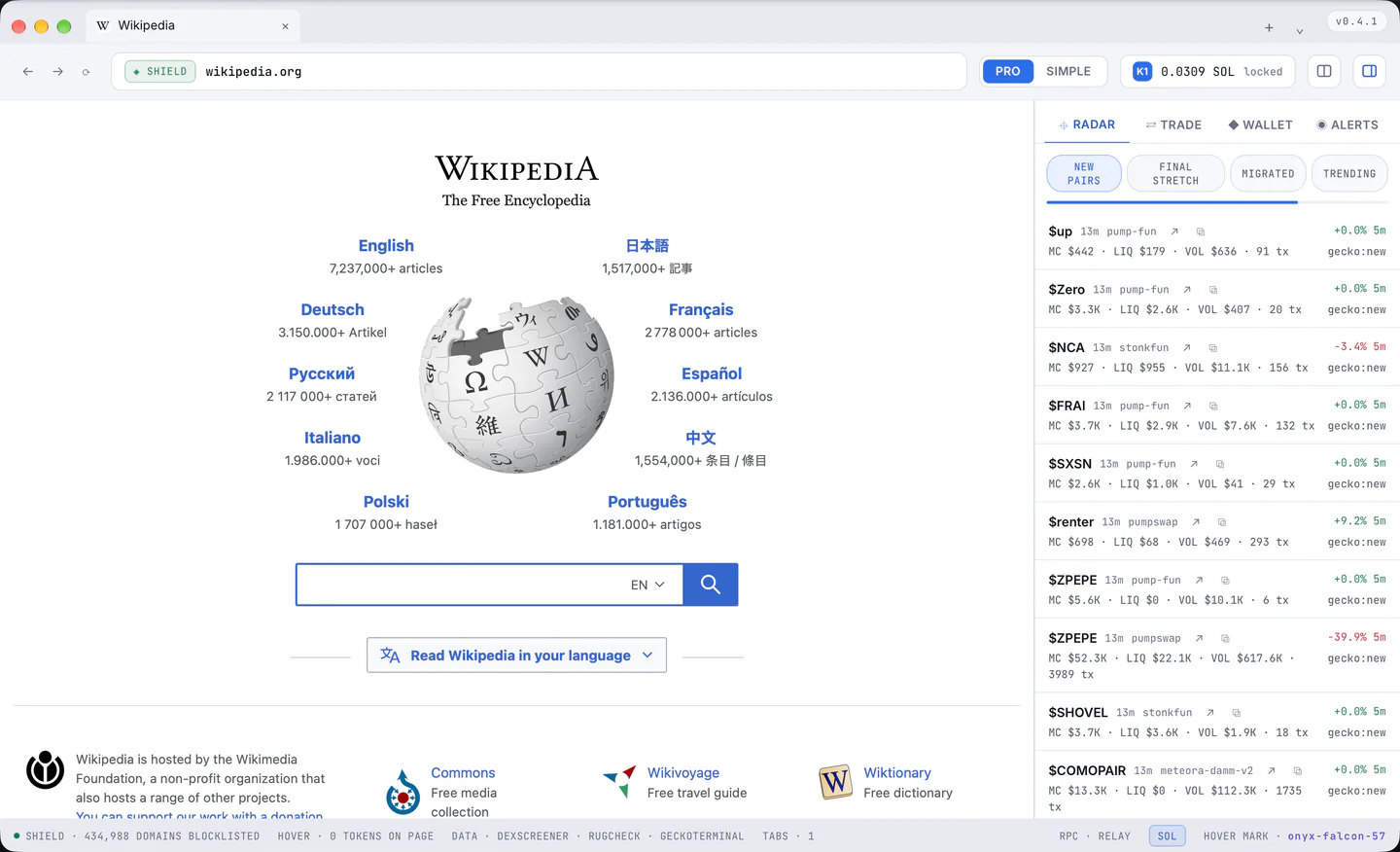
The four rows
- The tab strip is the title bar. macOS keeps the system title bar, with the traffic lights over the tab titles and the menu bar at the top of the screen. Windows draws no native frame: the version chip and a "≡" menu button sit at the far left, the Minimize, Maximize and Close buttons at the far right, and a thin frame around the page resizes the window (it goes away while the window is maximized).
- The toolbar: back, forward, reload, the address bar, PRO and SIMPLE, the wallet chip, the split view button and the rail button.
- The page area, with the rail on its right.
- The status bar along the bottom.
A double press on an empty part of the title bar maximizes or restores the window on both systems, and dragging the window works from any empty part of the title bar.
The status bar
It can be turned off in Settings > Appearance. Left to right it says:
- how many domains Shield has on its lists (or that it blocked this tab, or that the lists are still loading);
- how many token addresses Hover found on the page;
- which data sources are behind the numbers;
- how many tabs are open;
- then, as they happen: a blocked host, a short note, an "UPDATE · RESTART" button when a new version is ready, which RPC path is answering (the Kestrel relay, the public endpoint or none), the SOL chip, and the Hover mark with the last card's token.
The Hover mark is the word every real Hover card shows: a card without it was drawn by the page, not by Kestrel.

PRO and SIMPLE
Pro is everything. Simple shows one page at a time and replaces the new tab page with a calmer home: a greeting, what the wallet holds, a SOL to USDC swap in one step, what Shield stopped, the headlines. Real pages stay as they are. Settings > General > "Mode at launch" decides which one a launch starts in (the last one used, by default). Simple mode has its own section, 11.
The rail
The rail on the right holds four panes: RADAR, TRADE, WALLET, ALERTS. The rail button in the toolbar or Cmd+Shift+K (Ctrl+Shift+K) slides it in and out, and it opens itself when something needs it: the wallet chip opens WALLET, a buy from a card opens TRADE. Drag its left edge to resize it, from 300 to 640 px; the width and whether it is open are remembered.