Tabs, split view and desks
Tabs work as in any browser. On top of them Kestrel Browser puts up to five pages side by side, opens a token's chart, safety page, holders and talk together as a desk, and keeps the arrangements you like as layouts.
Tabs
The "+" button or Cmd+T (Ctrl+T) opens a plain new tab with the address bar ready. A press on a tab selects it, a middle press closes it, and the "×" closes it. Drag a tab along the strip to reorder it.
When there are many, tabs shrink and then the strip scrolls (the wheel scrolls it sideways), and the "⌄" button lists every tab, the shown ones marked "· split".
A tab shows its site's own icon whenever Kestrel Browser holds one for that site, also for tabs brought back at launch that have not loaded yet; the first letter of the site stands in only for a site whose icon was never seen or that has none. Site icons in tabs can be turned off in Settings > Appearance.
What a launch opens
Settings > General > "On startup": restore the last session (the default, up to twelve tabs with their panes and proportions), the new tab page, or a set of pages you name. A restored tab only loads when you look at it.
Closing
A closed tab is gone: there is no reopen and no recently closed list. Closing the last tab opens a plain new one, so the window never stands empty. Quitting with more than one tab open asks first, in a window of the system's own ("Ask before quitting with several tabs open" turns that off).
Links that open windows
A target="_blank" link becomes an ordinary Kestrel tab, Shield checked like any other. A sign-in that opens a sized window (Google's account picker and the wallets and terminals that use it) gets a window of Kestrel's own that keeps its opener, is Shield checked on every step and closes itself when the site is done.
Split view: up to five pages side by side
Three ways in:
- Cmd+Shift+D (Ctrl+Shift+D);
- the split view button in the toolbar;
- dragging a tab down onto the page area, where each pane offers "Split left", "Show here" and "Split right".
The button's popup lists one page, two, three, four and five (as rows when the window is too narrow for columns), greying out what would not fit, and under that "Save These Panes as a Layout", your saved layouts and "Manage Layouts".
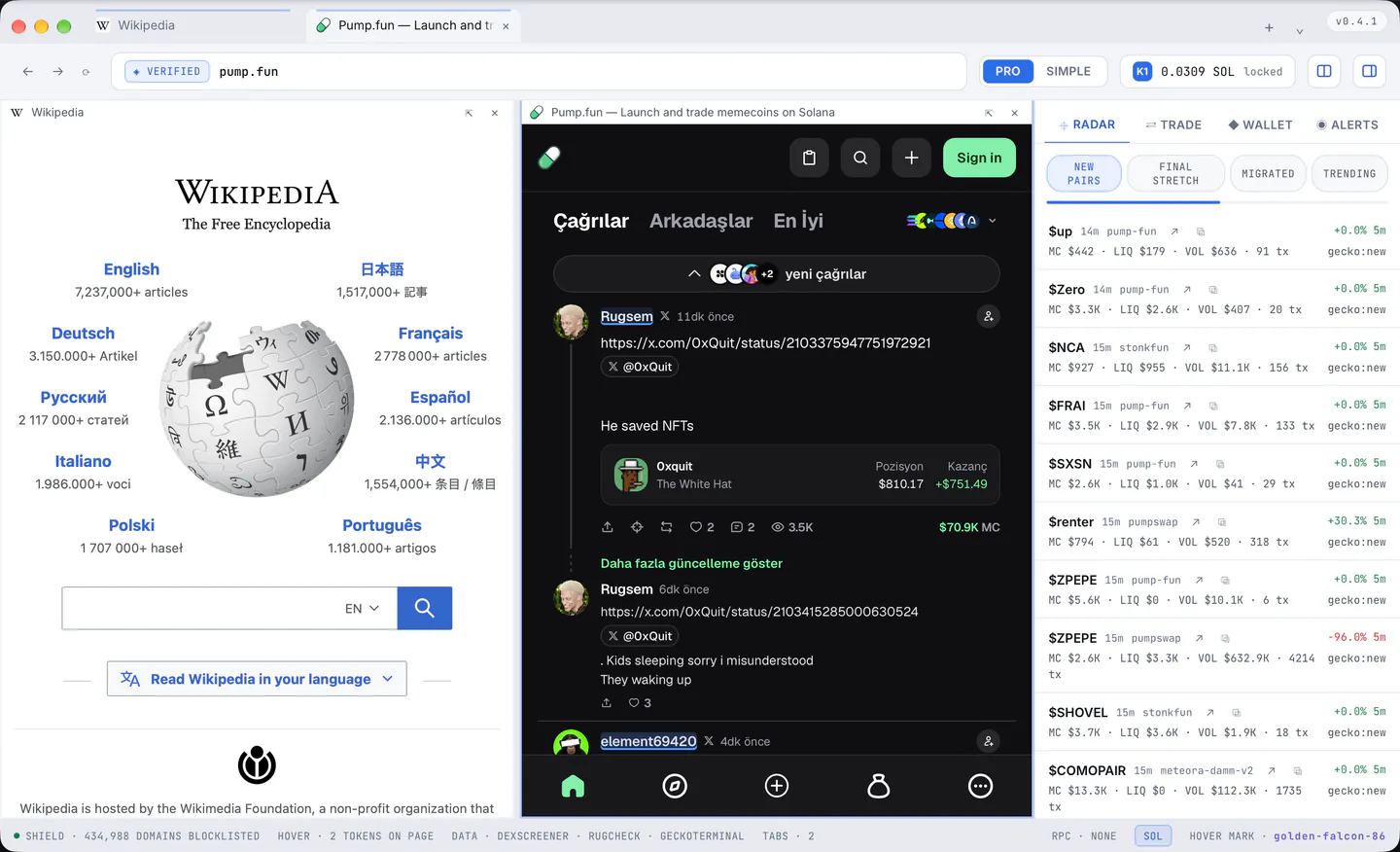
Drag the divider between two panes to resize, and the divider between rows for the rows. A pane's head has "⇱" to take that tab out of the split and "×" to close it. Cmd+Shift+D again collapses back to the focused page, and Cmd+Option+Left and Right (Ctrl+Alt) walk the panes.
The minimum pane width is 272 px (240 to 400 in Settings, marked Advanced), and the proportions you give panes come back the next time you split the same number of panes.
Token desks
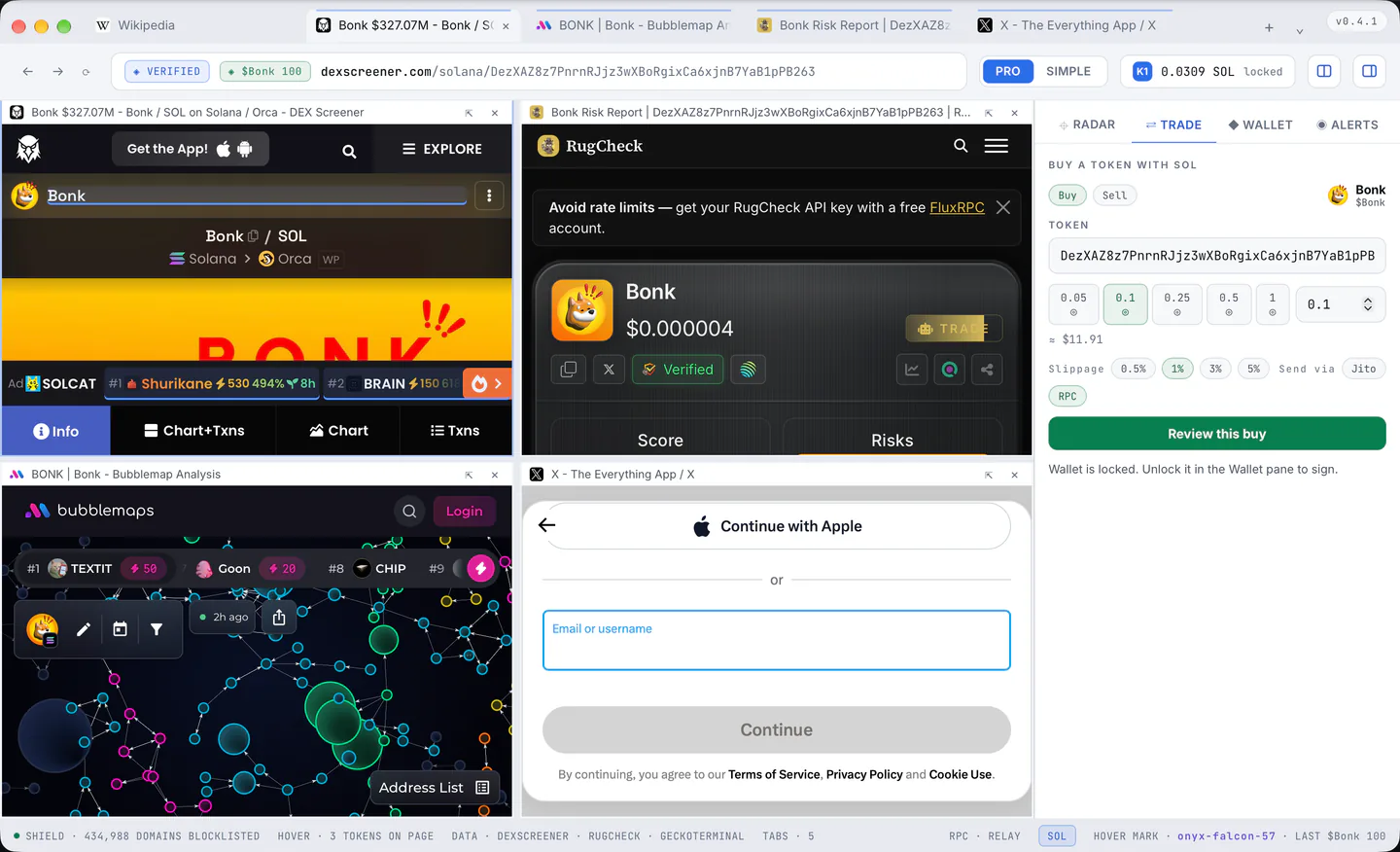
The "⧉" button on a Hover card or a Radar row opens a desk for that token: its chart (DexScreener), its safety page (RugCheck), its holders as bubbles (Bubblemaps) and the live talk about it (X search) side by side, with the rail's Trade panel already holding the address. No venue page is ever opened, because no web venue can reach the wallet in this browser. Which of the five parts a desk opens is in Settings > Panes and desks.
A page beside the one you read
The card's Bubblemap button (section 4) opens the token's map in a pane to the right of the page you are on, which stays where it is; with every pane taken it opens as a tab instead.
Saved layouts
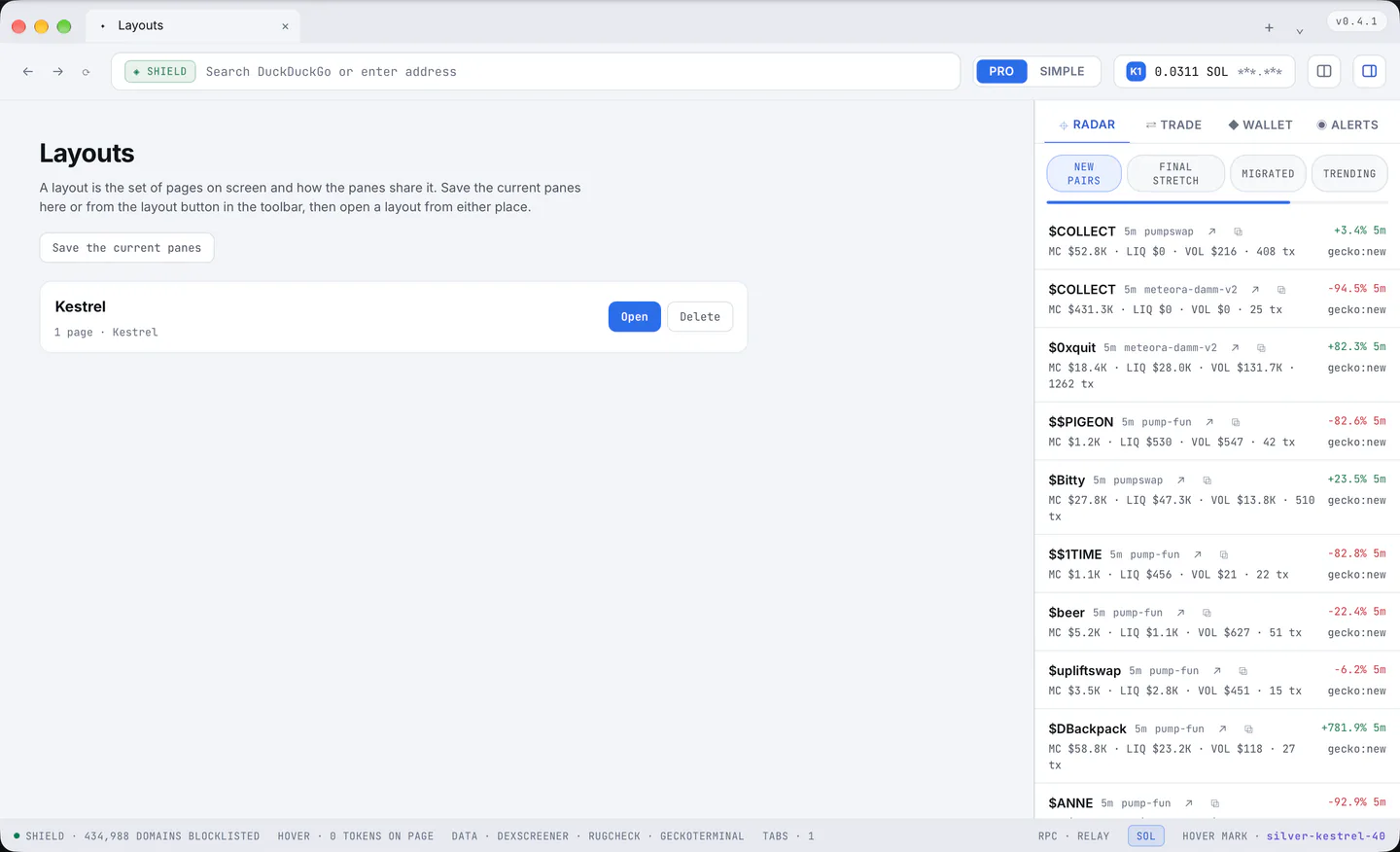
Save what is on screen from the split view popup or from the Layouts page; Kestrel names it after the hosts and keeps the pane proportions with it. The Layouts page (kestrel://layouts, or "Manage Layouts") opens, renames and deletes them; up to 24, each up to five pages, and the twelve most recent also show in the split view popup. A launch can start in a saved layout (Settings > Panes and desks > "Start with").